Features
Everything the grid does, from the first typed note to the exported clip.
The window
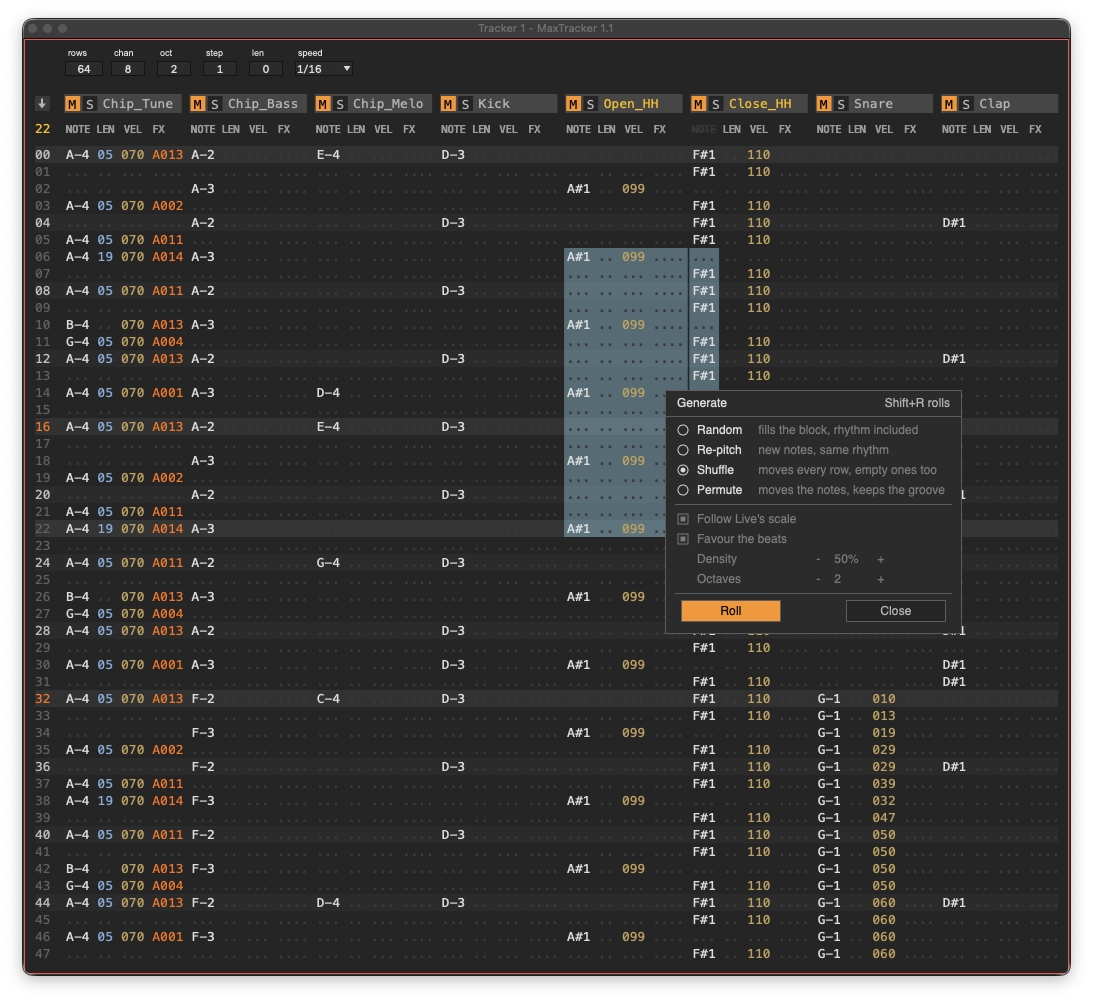
The tracker opens in its own floating window, always on top, sized to the pattern. It carries the name of the Live track it sits on — Lead Synth - MaxTracker — so a Set with three trackers never leaves you guessing which window is which. Drag its bottom edge to make it shorter or taller, up to the last row of the pattern; the height is saved with the Set.
The gutter
The narrow column on the left holds the follow arrow and the current row number. Beat rows are drawn lighter than the rest, which gives the bars their shape without a single line of chrome.
The channel headers
Each channel carries two boxes, like a Live track: M says whether it is muted, S whether it is soloed, and neither hides the other. A click toggles what the box shows — left button or right, it makes no difference. A solo is exclusive, as in Live: Cmd-click (Ctrl on Windows) to solo several. The two states stay independent, so lifting a solo returns every channel to what its M box shows. The channel also carries a name: click it to select the whole channel, every column and every row — the name lights up when it is taken whole. Shift-click or right-click renames it: bass, hats, whatever you want, and Shift+N renames the one under the cursor.
The settings strip
Six controls you touch while working: rows, channels, octave, edit step, default length and speed. Double-click any of them to reset it.
Putting a column aside
Click a column label above a channel and it greys out, gets a strike-through and stops having any effect: its values are ignored on playback and on export, and Shift+R no longer touches them. Nothing is lost — click again and it all comes back. All four columns switch off, NOTE included. Switching NOTE off is not the same as muting: the M cell silences the whole channel, effects and all, while a switched-off NOTE column removes only the strikes — a Vxxx, an Sxxx or a jump written on those rows keeps working.
Randomise while keeping your notes. Switch NOTE off, select the whole channel, then Shift+R: lengths, velocities and effects are drawn afresh and your notes stay exactly where you put them. Density does not apply in that case — your notes decide which rows get dressed, and an empty row stays empty. Switch the column back on and everything returns.
Every column has its colour
NOTE in off-white, LEN in light blue, VEL in amber, FX in orange — a glance tells you where you are without counting columns from the left. The dots marking empty fields are deliberately quiet: they show the place without asking to be read. Beat and bar rows sit on a barely lighter ground, and the bar numbers — 16, 32, 48 — are drawn in orange, so you count bars rather than rows. A grey cell is written but has no effect: an effect with no note under it, an A000, a glissando with nowhere to go.
Seven themes
Page 2 of the device panel carries a Theme menu: Dark, Light, White, Blue, Midnight Purple, Forest Minimal and Carbon Orange. Dark and Light take Live’s own Classic Medium colours, dark and light. Every one of them was checked so that what you read stays at least as legible as in Dark.
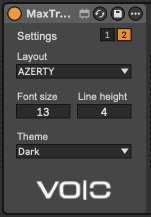
- The choice is saved with the Set, tracker by tracker: two trackers in the same Set can wear two different themes.
- Both editions have the menu.
- The settings page remembers itself. Keyboard layout, font size, line height and theme are kept as your preferences, and every new tracker opens with them.
A colour editor is on the way and will come with a later release. Until then, the seven themes are what there is to choose from.
Writing a pattern
Nothing is written while EDIT is off, and a device you have just dropped onto a track starts with it off — arming a recorder nobody asked for is how rehearsals end up in the pattern. A red frame around the window says EDIT is on. The space bar toggles it.
The keyboard
Two piano keyboards stacked, each with its black keys on the row just above, exactly as in FastTracker II. QWERTY and AZERTY layouts are both first-class: on a French keyboard the number row's unshifted characters are the sharps, so you never reach for Shift to play a black key.
Holding a key
A held note key writes one note per row on the way down, and each one sounds. It is the fast way to fill a column. The device's own repeat delay and rate are adjustable, separately from the system's.
Stopping a note
Either === on a row, or a length in the LEN column. The difference matters: a note given a length holds it to the end whatever arrives next, so a single channel can sound several notes at once — a chord, a pad under a melody — without spending a second one.
Recording from a controller
A MIDI keyboard feeding the track writes into the pattern under the same EDIT lock. With FOLLOW on it is a real-time take: notes land on the playing row and key releases become ===, so the phrasing is kept. With FOLLOW off it is step entry, even while the pattern runs.
Undo, and redo
Shift+Z undoes, Shift+Y redoes, ten steps deep. It is the tracker's own undo, not Live's, and it covers everything: the notes, the effects, the settings, the channel names, the mutes, down to the number of rows.
A burst of typing counts as one step — whatever is written inside half a second comes back in one go — and moving the cursor does not count at all. Undoing hands the pattern back to the engine, so it is safe during playback.
Do not use Live's Ctrl+Z on the pattern. The shortcut does not reach Live while the grid holds the keyboard, and if it does reach it during playback, the pattern and the engine fall out of step. To go beyond ten steps, or to keep one precise state before a transform you are unsure about, save a device preset: a complete snapshot that nothing makes expire.
Playing
SYNC
On, the tracker follows Live's transport and stays locked to the Set's tempo — and Enter from the grid drives Live's transport itself, so Live's Stop button stops the tracker too. Off, the tracker runs on its own clock and Enter starts and stops it without touching Live.
FOLLOW
On, the cursor follows playback and the grid scrolls with it. Off, the grid stays where you put it — which is what you want in order to write into row 32 while row 5 plays. It turns itself off if you scroll with the wheel during playback: you have shown you wanted to look elsewhere.
Speed
Row length as a note value: 1/1 to 1/96, ternary values included, 1/16 by default. Sixty-four rows at 1/16 is four bars.
When a clip plays on the tracker's track
The tracker steps aside on its own: it stops playing and stops writing while that clip runs, then everything resumes. MIDI arrives at a device with nothing to say where it came from, so without that retreat a clip would record itself into the pattern while playing over it. A clip on another track changes nothing — you can launch your exported clips and keep writing while they play.
Selection and transforms
A block is not a rectangle but a passage: it starts at one field and ends at another, following reading order — NOTE, LEN, VEL, the three effect fields, then the next channel. Dragging down the VEL column takes velocities and leaves the notes alone; dragging across channels takes everything in between.
Double-click takes the column
Two clicks anywhere in the same column of the same channel select it over the full height. It works for each of the seven fields.
| Shortcut | What it does |
|---|---|
| Shift+C / X / V | Copy, cut, paste — the clipboard keeps the shape of what was copied, so a column of velocities pastes back as velocities. |
| Shift+D | Duplicate writes the block just below itself and moves the selection onto the copy. Repeat to walk a phrase down the pattern. |
| Shift+R | Roll again with the Generate panel’s settings, without opening it — see below. |
| Shift+A | Select everything. |
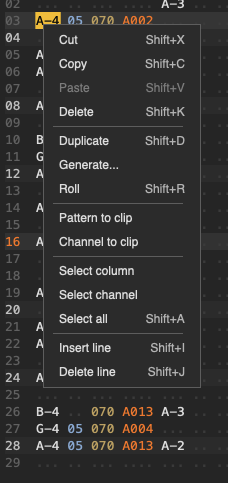
| Right click | Context menu at the pointer, with every shortcut shown beside its entry. |
The Generate panel
Everything that draws or moves a block’s contents goes through one panel, opened with Generate… in the context menu. It carries the four modes, and beside them the scale, the beats, the density and the octaves. It opens next to your selection so as not to hide it, and stays where you drag it; the options a mode does not use are greyed. Shift+R rolls again with those settings without opening it — set it once, then roll from the keyboard as often as you like. Every roll is undone with Shift+Z, and the settings travel with the Set.
- Random fills the block with drawn content, rhythm included.
- Re-pitch gives every note another pitch and touches nothing else: place, length, velocity and command all stay.
- Shuffle redistributes the block’s rows at random, losing nothing and inventing nothing. Empty rows move like the others, so the rhythm changes.
- Permute trades only the rows that carry a note: the hits stay where they are and only what is played changes order.
A draw tuned to be listenable
- Pitches follow the Set's scale. Live 12 keeps the current root and intervals on the song; Random reads them and moves any stray note to the nearest one that fits. There is no scale table inside the device, so a scale added to Live works here the day it appears.
- Beats are favoured. Rows that land on a beat get the full density, the others its square — which is what separates a phrase from a hedge.
- A row is written whole or not at all: never a velocity without a note.
- In the FX column the parameter is drawn, never the letter. A speed change or a jump drawn at random is not a variation, it is a different piece.
- Drawn values are always playable: never out of range, never a glissando step wider than the interval, never arpeggio shape zero.
- With nothing selected, the draw applies to the single field under the cursor — the fastest way to reroll one value.
All of it works with the mouse too
The two complete each other more than they replace each other. The keyboard is unbeatable for writing — you type without aiming. The mouse is better at pointing: landing twenty rows away without counting, taking a block you have in front of you, reaching a command without remembering its shortcut.
Nothing is reserved to one or the other, and moving between them takes no ceremony: the keyboard comes back to the grid as soon as the pointer enters it, with no click, so the current selection survives. The context menu carries most of the transforms, which lets you work a block with no keyboard at all — handy when Live is holding it.
| Gesture | What it does |
|---|---|
| Click in the grid | Put the cursor on that field |
| Drag | Take a block |
| Double-click | Take the whole column |
| Wheel | Scroll the rows |
| Right click | Open the context menu |
| Click a channel name | Take the whole channel |
| Shift-click or right-click a name | Rename it |
| Click a column label | Switch that column off, or back on |
| Click the M and S boxes | Mute, solo — Cmd-click S to solo several |
The FX column
Four cells: the command letter, then three decimal digits, each digit its own field the cursor stops on and the mouse can select alone. A digit that no usable value could carry in that place is refused outright, and what a keystroke leaves behind is pulled to the nearest usable value in front of you — what the cell shows is always what the engine plays.
| Command | What the three digits mean | |
|---|---|---|
Axxx | Arpeggio | A shape from a table of fifteen — major, minor, seventh, sus4, fifth, octave… The cycle is as long as the shape. It needs a note on its own row: on a bare row it does nothing, and the cell greys out to say so. |
Vxxx | Channel velocity | 0 to 127, for the notes that follow on this channel. Distinct from the VEL column, which belongs to its own note only. |
Dxxx | Delay | In ticks, always shorter than the row. Swing, flam, the nudge that lifts a note off the grid. |
Sxxx | Speed | Ticks per row, up to 96. S000 returns to the pattern's own speed. Decimal, so an accelerando writes itself: S012, S010, S008. |
Jxxx | Jump | Sends playback to row xxx once the current row has finished. Its ceiling is the pattern length, and it moves when the pattern does. |
Rxxy | Repeat | The first two digits are the number of strikes, the last their spacing in ticks. The note itself counts as the first strike. R00y re-strikes until the next note on the channel cuts it — a stutter whose end you place. |
Gxxy | Glissando | Walks the sounding note to the note written on the row, in steps of xx semitones every y ticks. The direction is deduced, never written. Made only of ordinary notes, so it exports — which a real pitchbend could not. |
A command that cannot act is drawn in grey. An A, D, R or G on a row with no note has nothing to arpeggiate, delay, re-strike or reach; a glissando whose step already covers the whole interval is a leap, not a glide. Rather than fail quietly, the cell says so on screen: the grey appears as soon as you finish typing, and it goes away by itself once the command has something to act on.
Export to a clip
Select a clip slot in Live, press EXPORT. The clip is created at the length of the pattern and filled with the notes; if a clip was already there it is kept and only its notes are replaced — which matters, because destroying a recorded clip would throw away the only copy of its envelopes.
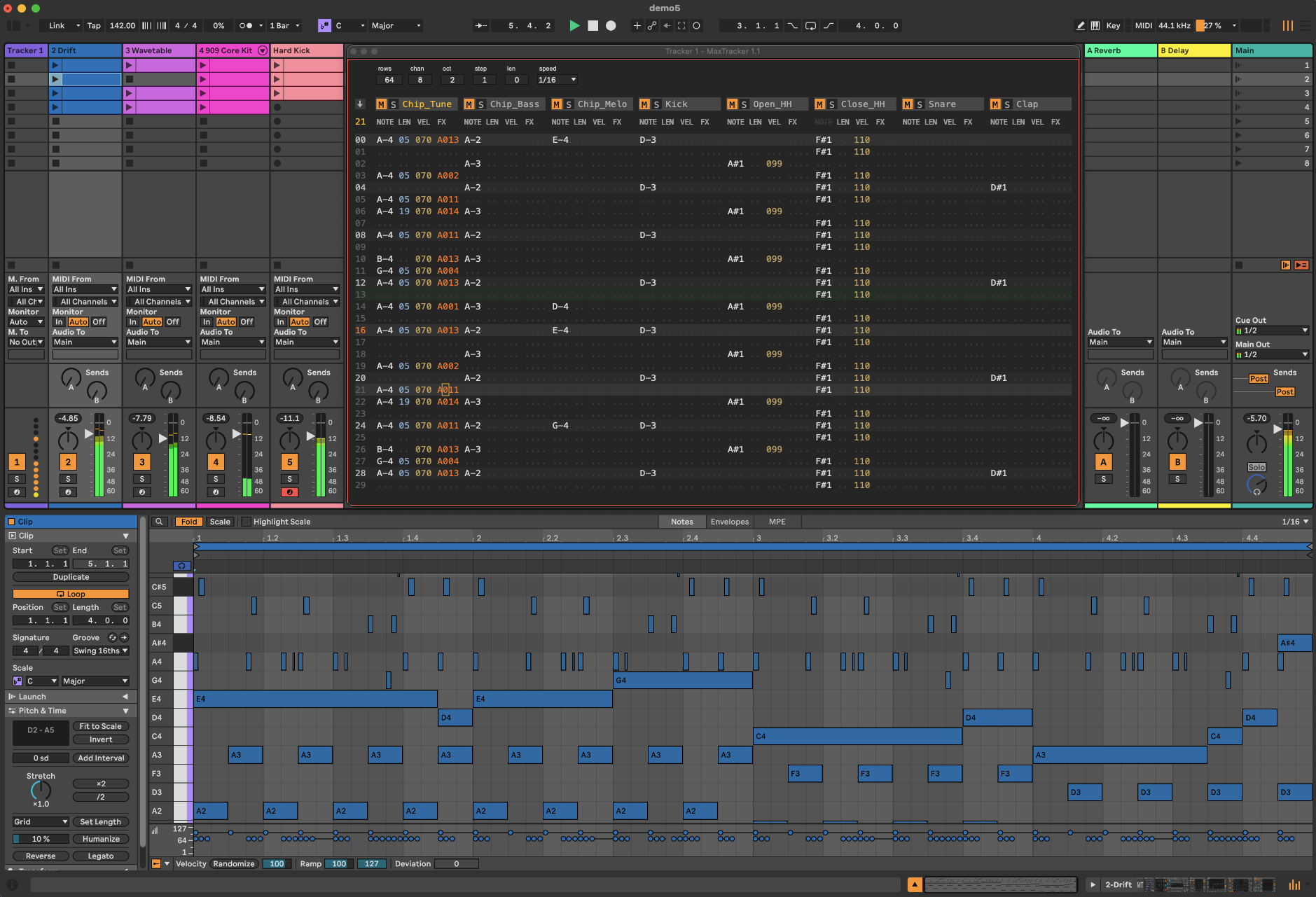
Sxxxshifts every row that follows, and the clip length accounts for it.Jxxxis unrolled: the path actually taken is written, skipped rows are not, and writing stops the moment a row would come up twice.Dxxxdelays the note inside its own row.AxxxandRxxyare written as the notes they make you hear.Vxxxfeeds the written velocity.- Muted channels — and channels silenced by someone else's solo — are not written. What you hear is what you export.
One channel at a time
Channel to clip, in the context menu, exports only the channel under the cursor. A Live clip has no notion of MIDI channel, so this is the honest way to send each channel to its own track — and each MaxTracker Receiver has an Export button that does exactly this for the channels it is listening to.
A note with no LEN lasts until the next one
That is what an empty LEN has always meant, and the clip shows it: two rows apart at 1/16 gives an eighth note, one row gives a sixteenth. Where two notes of the same pitch follow one another, the first is shortened by a sixteenth of a tick — under a millisecond — so they do not quite touch. Without it Live merges them into one long note and the second attack disappears, though you hear it in the pattern. Different pitches are never separated.
Coming back to row 00
On the return to row 00 the tracker stops what has no length and lets what has one finish. A note with no LEN holds until something claims its channel, and nothing does on the other side of the loop, so row 00 acts as a === on every channel. A note with a LEN runs its full length even when that overruns into the next pass. The clip is the one place where what you hear and what you export part company: a Live clip has one pass and cannot say "and it carries on", so the overrunning tail is not written. If you want to keep that held note, one more row before the end writes it down in black and white.
One pattern per device
A MaxTracker holds one pattern, and one only: there is no pattern list, no song mode, no bank inside the device to step through while it plays. That is not an omission — the arranger is Live, and the tracker does not try to replace it. Three ways to build a track:
- Export, then arrange. Write a pattern, EXPORT it to a clip, write the next one — you end up arranging ordinary MIDI clips that no longer need the tracker to play. In Session view, Live’s follow actions chain those clips by themselves: in order, in a loop, or at random — the pattern chain a tracker would have given you, held by the host.
- Several trackers. Nothing limits how many a Set can hold: one per section, or one per instrument. That is the full edition’s privilege — the free one plays only one at a time.
- Device presets. Each is a complete snapshot of a pattern, filed in Live’s browser and recalled on any instance.
Said here rather than after the sale: it is the first thing you look for when you come from a classic tracker. The FAQ goes into it further.
Two editions
The free edition is the same program, with a smaller grid and without the companion device. Not a demo that expires, not a nag screen, not a silence after an hour: it saves with your Set and renders exactly like the full one, for as long as you keep it.
| Lite — free | Full — $29 | |
|---|---|---|
| Channels | 4 | 8 |
| Rows | 16 — one bar | 64 |
| Trackers per Set | one that sounds | as many as you like |
| MaxTracker Receiver | not included | included, as many as you like |
| Export to a clip | whole pattern | whole pattern |
| Effects, speeds, Generate panel, themes, undo, mouse, MIDI keyboard | all of it | all of it |
| Timing and render quality | identical | identical |
| Saved with the Set | yes | yes |
| Manual | the documentation on this site | the full manual, PDF and EPUB |
| Updates | fixes and minor improvements | all of them, new features included |
What really separates them: the Receiver
Without the Receiver, the four channels of the Lite edition all reach the same instrument. It is a four-voice figure for one sound, one bar long. The full edition is eight voices over four bars, each voice on its own track, with its own instrument and its own effects — and as many trackers in the Set as you want — since 1.1, only one free tracker sounds per Set, the others open and edit but stay silent. That is the difference between the two, and it is a difference of kind rather than of size.
Your patterns come with you
A pattern lives inside the device that wrote it, so buying the full edition does not move your work across on its own. The clipboard is shared between every MaxTracker open in the Set: select all with Shift+A in the Lite, copy with Shift+C, paste into the full one with Shift+V. Nothing to export, nothing to import, and the effects travel with the notes.
Boost your writing with a MIDI generator unlike the others.
* Price excluding tax. Any VAT or sales tax due in your country is added by Gumroad at checkout.