Piloting the whole Set
This is what MaxTracker does best, and what separates it from an arpeggiator or a step sequencer sitting on one track.
The eight channels of the grid are not eight voices of one instrument: they are eight destinations. From a single window you write the drums on channel 1, the bass on 2, a pad on 3 — and each goes to play on its own track, with its own instrument, its own effects and its own volume. Live devices and VST plugins without distinction.
How
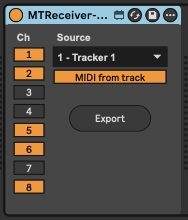
Put a MaxTracker Receiver on every track you want to drive, in front of its instrument. In its Source menu, pick the tracker; on its Ch column, switch on the channel or channels it should play.
  track 1   MaxTracker             <- the grid, all eight channels
  track 2   Receiver [Ch 1]   ->   Drum Rack
  track 3   Receiver [Ch 2]   ->   Bass VST
  track 4   Receiver [Ch 3 4] ->   Wavetable
Nothing to route in Live, nothing to set in preferences: the devices find each other. One receiver can take several channels, and several receivers can take the same one — doubling a bass line on two instruments is one click.
Why this is not ordinary MIDI routing
Live has no way of splitting one track's MIDI channels out to several other tracks. The eight channels therefore travel over an internal link between the devices, which does not go through Live's routing and adds no perceptible delay. That last claim was measured rather than assumed: 0.0 ms on average, 1 ms worst case, over 2,250 events. A deferred JavaScript object would have shown up there in tens of milliseconds. It does not.
The MaxTracker Receiver
A small companion device, included with MaxTracker, to be dropped on any track in front of the instrument of your choice.
- Ch — eight numbered buttons decide which channels are played. They keep their state and are saved with the Set.
- Source — lists the MaxTrackers open in the Set as
2 - Drums, the number and name of their track. With only one, it selects itself. - MIDI from track — on by default, lets the track's own MIDI through to the instrument. Switch it off to hear nothing but the tracker; notes crossing at that instant are released rather than left stuck.
- Export — writes the chosen tracker's pattern, limited to the channels lit here, into the clip slot selected in Live.
What it changes about writing
Everything the grid can do applies to the whole arrangement at once. A selection running across several channels transposes, copies and randomises together. The effects — arpeggios, glissandi, repeats — apply per channel independently. And the M and S boxes act across the whole Set without touching Live's own track controls.
Exporting, track by track
Each receiver's Export button writes its own channels into the clip slot selected in Live. One button per track turns a pattern played live into MIDI clips spread over the whole Set, at exact positions and durations.
And you can keep writing while they play. The tracker only steps aside for a clip on its own track, whose MIDI enters the device; a clip running on a receiver track does not bother it at all. So launch your exported clips and finish the pattern while listening to them.
Several MaxTrackers in one Set
Put in as many as you like, on as many tracks. Each instance is independent: its own pattern, its own settings, its own window — and its track's name in the title bar, which is what keeps them apart when several are open. The free edition is the exception: you can drop in several, but only one of them sounds.
They do not collide on the internal bus: each announces itself under an identity of its own, and every receiver picks the one it wants from its Source menu. One set of receivers can therefore play one tracker while another set plays a second, in the same Set. A preset saved from one instance recalls on any other — it is a snapshot of the pattern, not of the track.
Worth knowing
Switch off, on the receiver, the channels the clip already plays — otherwise you hear them twice. The channel's M cell in the grid does the same job.
A receiver's Source menu never offers a tracker sitting on the receiver's own track. Every note would be heard twice — once from the tracker, once from the receiver. Move one of the two and the source appears.
Switching a channel off releases what it was holding. A note whose end was going to arrive on a channel nobody is listening to would never arrive — eight buttons would become eight ways of jamming a note. The receiver releases them, and does the same when you change source.
An instrument placed directly behind the tracker receives all eight channels in one MIDI stream, and most instruments ignore the channel: it will play them all together. It is the receiver that really separates the channels, not the MIDI channel itself.
Boost your writing with a MIDI generator unlike the others.
* Price excluding tax. Any VAT or sales tax due in your country is added by Gumroad at checkout.