Documentation
Requirements, installation, the first sound, and the shortcut sheet. The full manual ships with the full edition.
What you need
- Ableton Live 12.2 or newer
- This is a hard requirement. MaxTracker is written for the V8 JavaScript engine that arrived with Max 9, and Live has only shipped with Max 9 since version 12.2, released in June 2025. On Live 11, or Live 12.0 and 12.1, the device will not load.
- Max for Live
- Included with Live Suite; a paid option with Live Standard.
- Windows or macOS
- The device behaves identically on both.
One exception. If you own Max 9 as a standalone application, you can point Live at it as the Max for Live engine, and the tracker will then run on an earlier Live. That is an advanced setup, not the normal path. One feature additionally depends on Live 12: Random following the Set's scale. Everything else works without it.
Installing
Your purchase is two files: maxtracker.amxd, the tracker, and mtreceiver.amxd, the companion device. Each stands on its own — nothing to unpack, no folder to keep intact. Put them where you like, copy them to another machine, they work as they are. The handiest place is Live’s User Library → Presets → MIDI Effects, where they show up in the browser alongside your other presets, but that is a convenience and nothing more.
- Create a MIDI track in Live.
- Put an instrument on it — a Simpler, an Operator, anything that makes a sound.
- Drag
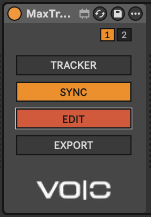
maxtracker.amxdonto the track, before the instrument in the chain. The order matters: the tracker sends notes to what follows it.
The first sound
- Click TRACKER. A window opens, with the grid.
- Click EDIT — the window's frame turns red. That is write mode; without it nothing is written.
- Click in the grid, in the first column of the first row.
- Press Z on a QWERTY keyboard, or W on AZERTY.
A C-3 appears, and you should hear it. If you hear something, everything is in place.
Nothing sounds? Check that the track is armed or its monitoring is on In, and that there really is an instrument after the tracker in the chain.
Nothing is written? EDIT is probably off. That is deliberate: a device you have just dropped does not write until you ask it to.
The keyboard
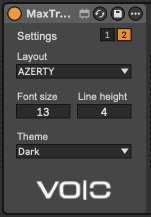
Two piano keyboards stacked, each with its black keys on the row just above — as in FastTracker II. The layout is chosen on page 2 of the device panel.
 number row     é  "     (  -  è     ç  à       (AZERTY)
                2  3     5  6  7     9  0       (QWERTY)
                C# D#    F# G# A#    C# D#
                ^ the black keys of the row below

 top row        A  Z  E  R  T  Y  U  I  O  P    (AZERTY)
                Q  W  E  R  T  Y  U  I  O  P    (QWERTY)
                ^ C D E F G A B, one octave up

 bottom row     W  X  C  V  B  N  ,             (AZERTY)
                Z  X  C  V  B  N  M             (QWERTY)
                ^ C D E F G A B
                S  D     G  H  J                (the black keys)
The octave is set with ) and Shift+) — one key and its shift, so the gesture is the same on PC and on Mac. On QWERTY, - and = work too.
Shortcut reference
All of these work on Windows and macOS. Shift is the only modifier that means the same thing on both systems and that no application claims for itself, so the Shift forms are the safe ones — macOS intercepts Ctrl and Cmd before they reach the device.
Writing
| Piano keys | Write a note |
| 1 or & (same key) | ===, note off |
| ) / Shift+) | Octave down / up |
| < > | Edit step |
| Space | Toggle EDIT |
| Del or Shift+K | Clear the field |
| Shift+Q | Clear the whole cell |
| Shift+Z / Shift+Y | Undo / redo, ten steps |
| Ins or Shift+I | Insert a row |
| Backspace or Shift+J | Delete a row |
| Shift+W | Clear the whole pattern |
Moving
| Arrows | Field to field |
| Tab | Next channel |
| [ ] | Sixteen rows |
| Shift+G / H | First / last row |
Blocks
| Drag the mouse | Make a block |
| Shift+A | Select all |
| Shift+C / X / V | Copy / cut / paste |
| Shift+D | Duplicate |
| Shift+R | Roll the die (Generate panel) |
| Esc | Close the menu |
Playing and setting
| Enter | Play / stop |
| Shift+E | EDIT |
| Shift+F | FOLLOW |
| Shift+T | Record played velocity (touch) |
| Shift+N | Rename the channel |
| Shift+M | Open the menu |
Troubleshooting, the short version
The keyboard stops responding
On macOS, holding a key does not repeat
defaults write -g ApplePressAndHoldEnabled -bool false, then quit and relaunch Live. To undo it, defaults delete -g ApplePressAndHoldEnabled.I cannot write anything
Playback stutters when Live is busy
A tight figure sounds wrong
Rxxy with a spacing under 4 sounds lopsided during playback while being perfectly even in the clip exported from the same pattern — and a Gxxy with a spacing of 1 or 2 fares worse: steps can vanish outright, so the glissando seems absent on playback while the clip holds it whole. A Max for Live device can only emit at Live’s audio buffer boundaries — every 11.6 ms at 512 samples — and a step shorter than one buffer shares it with its neighbour, so only one comes out. Spacing the steps costs less than touching the buffer: Gxx2 or Gxx3 are still glissandos and come out cleanly at 512. For the finished version, export to a clip: it is exact.The manual that ships with the full edition covers all of this in full, plus the device's own repeat settings, the real-time recording offset, and the limits worth knowing.